What are you solving in it?
Especially course registration, study results and actions related to study obligations. Always follow the instructions of the study department for important deadlines and decisions.
Digital services
Practical guide for FDUstudents.
To the beginning
FDU digital services are a signpost to things you'll actually use during your studies: subjects in AIS2, school email, files in OneDrive, communication in Teams, film materials, festivals, music and technology. Come back here whenever you need to solve a specific problem.
01 / Academic Information System
AIS2 is a place for subjects, registrations, study results, and other study administration.
Especially course registration, study results and actions related to study obligations. Always follow the instructions of the study department for important deadlines and decisions.
02 / School account
Microsoft 365 is general access to applications and services available through your AUschool account, such as Word, Excel, and PowerPoint.
03 / Outlook
The school email box is used for communication with the faculty, teachers, and the study department.
You can read and send messages, find official announcements and invitations, and organize your communication by subjects or projects.
04 / Cloud storage
OneDrive is a place where you can store, sync, and share your study files online through your school account.
Save your term papers, presentations, production documents, or project folders here so you can access them from another device.
05 / Communication and online learning
Teams is used for team communication, online meetings, and sharing materials through a school account.
When a teacher or subject uses Teams, you need to join an online meeting or find material shared in a specific channel.
06 / AU student ID card
The ISIC card serves as a student ID card at the Academy of Arts. The current conditions of issuance, validity, renewal and use are published on AUcentral website.
The Academy of Arts issues a student ID card based on a contactless smart card with the ISIC visual. Specific fees and organizational instructions may change, so always check them for the current academic year.
The manual does not explain the activation process or renewal procedure. Please use official AU information or instructions from the office that issues the card.
07 / Internal catalog
Internal catalog of FDU audiovisual outputs — from student films to event recordings and outputs of the Simulation Center.
Student films, yearbooks, bachelor's and master's theses, film exercises, recordings of theater performances, current events, performances, workshops, events and other school outputs.
When you search for a film by title or author, you want to verify your submitted output after processing, or you need to search the internal archive.
08 / Film and materials in one place
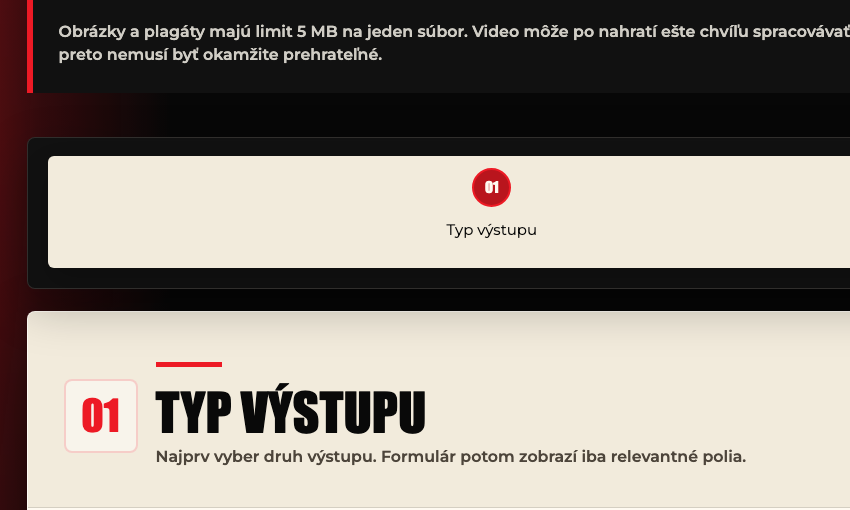
The main service for submitting year-end films and other school audiovisual outputs. You select the output type, insert the video and supporting documents directly into one form.
09 / Festival materials
A form for a situation where materials for a student film are being prepared for a festival application, catalog, or communication with the festival.
When a film goes to a festival or when an educator, production or festival coordinator needs to have ready-made materials in one place.
The form guides you through the required fields and shows you what is missing in the last step. Don't just submit it with "temporary" links that will be disabled later.
10 / Production music
Licensed production music for school films, productions, presentations and other non-commercial creative outputs FDU.
When you are looking for music for a project created within the framework of a study or under the auspices of a faculty and you need to have a clear origin of the composition used.
11 / Equipment rental
Online entry for booking film, sound and lighting equipment, accessories, media and other FDUequipment. The external system uses Booqable.
You log in with your school email and create your own password. When booking, please state the purpose of the loan, the name of the project, and a note if necessary.
The scope of the technique depends on experience and skill. Advanced technique is available after completing the Film Studio Practice I and II courses and demonstrating the ability to work safely with specific equipment.
Monday to Friday from 10:00 to 14:00 in the equipment warehouse at the film studio, only on confirmed dates. Standard maximum 48 hours, maximum 72 hours on weekends.
12 / When something gets stuck
Check the simple things first. If the problem persists, send the person helping you as detailed a description as possible — it will speed up the resolution.
Open the Review and Submit step, complete all required fields, and verify that you have selected the output type, video, required stills, and text materials. Also check your internet connection.
Once submitted, the video is recorded and processed in the background. For longer movies, it may take a while before it can be played or displayed in the catalog.
Check if you are logged in to your FDUschool account with your school email and password. Ask your teacher or designated person for current access.
Yearbook film belongs under Yearbook film, bachelor's and master's theses under the appropriate type. For exercises, trailers or other output, let the form adapt to the selected type. If you are hesitant, check with your teacher before sending.
Do not create a new account or use someone else's account. Check that you are on the correct page, and if access still does not work, contact the relevant department via FDUcontacts.
13 / Where to look for help
If the answer is not in the manual, contact the place where the matter is actually being handled. There is no shame in asking before you submit incorrect documents.
Study department or official contacts FDU.
Open FDU contacts →A teacher or authorized person who handles your output and its processing.
Open FDU contacts →Registration and access are handled by Mgr. art. Veronika Hollá, ArtD.
veronika.holla@aku.sk →If you have any questions about the loan, please contact the relevant department, technician or teacher.
Booking rules →Digital services don't have to be elegant every day. What's important is that you know where to start and who to write to if something doesn't work the first time.
Back to Digital Services →